What dictation keeps, and what fab keeps with it
Dictation gives you the sentence at the cursor; fab also keeps the window, picture or short video you chose while saying it. Your voice and your grabs stay on your Mac.
You needfab 0.2.19 on macOS 26 or later, Apple silicon
Updated
On this page01 / 10
- 01The originals put a sentence at the cursor
- 02The cleanup generation gives you a cleaner sentence
- 03The sentence leaves the button behind
- 04Looking at the window still serves the sentence
- 05In fab, you take the grab while you talk
- 06Mark the part you mean and let go
- 07History keeps the take, with a demo video
- 08Use dictation when the words are the whole job
- 09What to look for
- 10Questions
The originals put a sentence at the cursor
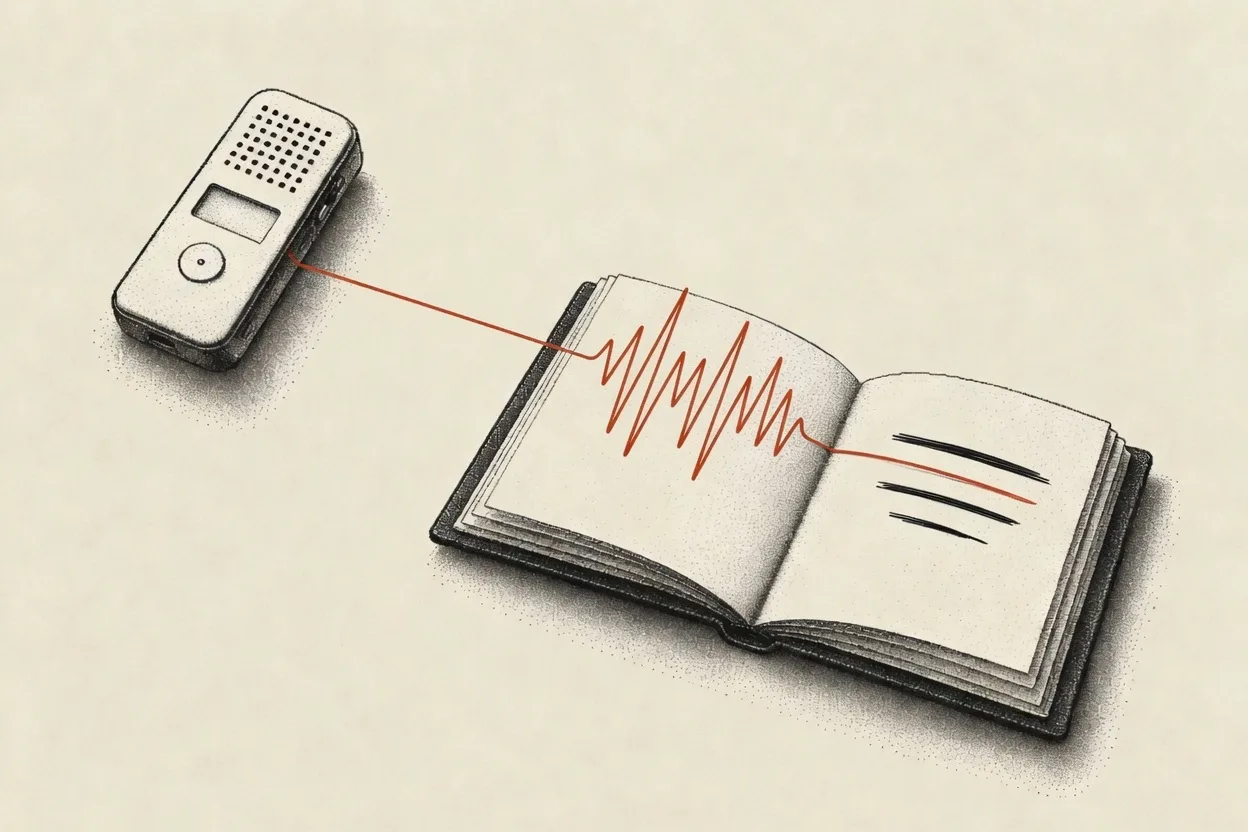
Dragon and Apple Dictation established what voice on a computer was for. You put the cursor in a text box, speak, and get written words. The document or message is already open. Speech gives you another way to fill it.
Dragon spent decades getting the words right and teaching the machine commands. Dictating, correcting and working through a document by voice became a finished craft. If you dictate all day, those details matter. A new app with a different use for speech does not make that work obsolete.
Apple Dictation made the basic act part of using a Mac. The product in both cases is the sentence at the cursor. That is a useful place to stop when the sentence is everything you wanted to make.
The cleanup generation gives you a cleaner sentence
Wispr Flow and Superwhisper are the serious successors to Dragon in the AI dictation people mean in 2025 and 2026. They keep the familiar arrangement: you speak, and text goes where the cursor is. They spend more of their effort on the distance between how you talk and what you would have typed.
Wispr Flow’s product is a cleaned sentence. Fillers come out, punctuation goes in, and formatting fits the app you are writing in. The audio goes to a server for processing. You can speak a rough version of a message and get text that needs less tidying before you send it.
Superwhisper brings that work to the Mac with on-device models and modes for different kinds of writing. It also offers cloud models, so where processing happens depends on what you choose. A mode can shape the words for an email or another kind of text.
These are useful improvements to dictation. Removing an “um” or turning spoken items into a list saves editing. A cleaner transcript is still dictation: the result is text in the place you were typing.
The sentence leaves the button behind
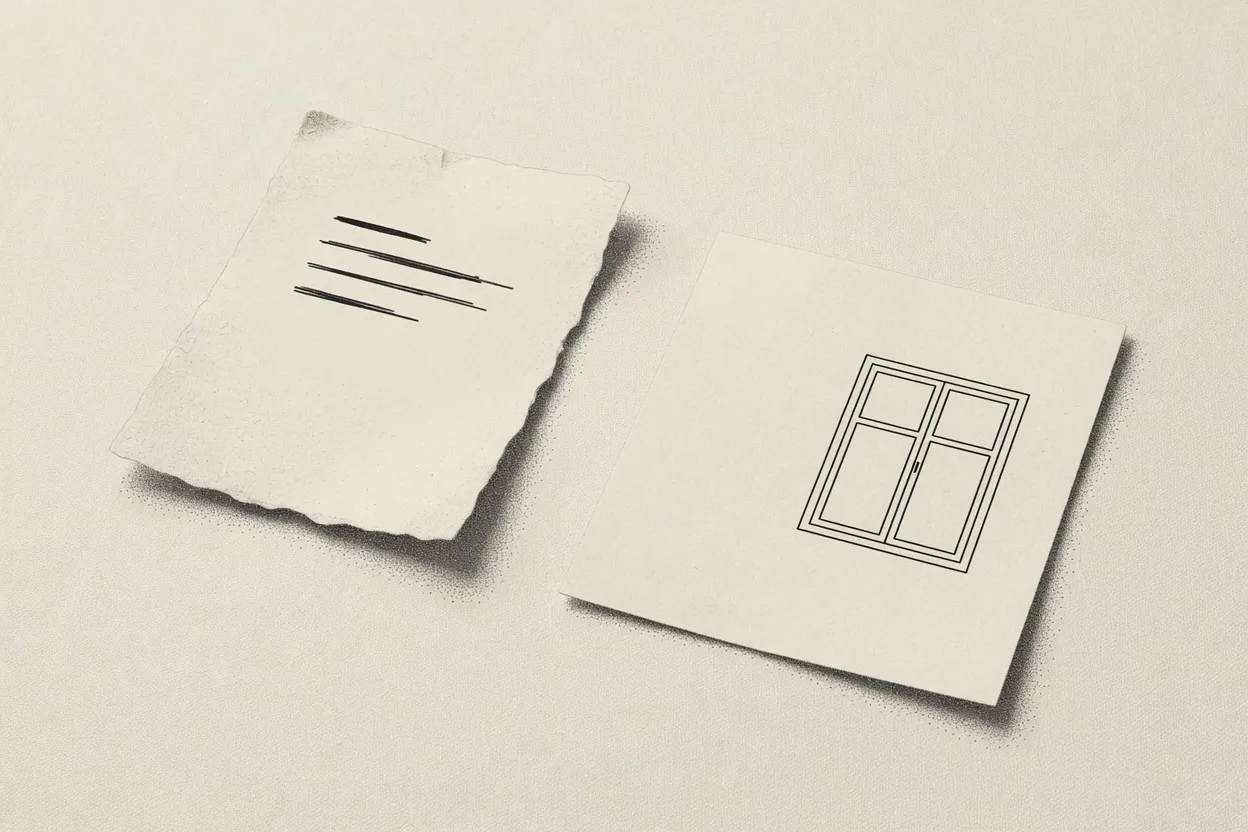
“The sign-in button does nothing” is a good sentence and a useless report. Which sign-in screen? What happened just before you pressed the button? Did an error appear somewhere else? The person reading it has your conclusion and none of the screen you were looking at.
You can keep talking until you have described the layout, the label and the sequence of clicks. You can also take a screenshot. Then you need to find it, put it beside the sentence and mark the part you meant. If the problem happens over time, you need a short video instead.
Getting the words and the evidence to someone else is a second errand. The dictation app has already done its part. It can transcribe every word correctly and still leave you with that errand, because the button stays on the screen, unattached.
Looking at the window still serves the sentence
A third approach gives dictation a look at the app around your cursor. Context can help it recognise a name or decide how to format a message. The result can still stop at the sentence.
Wispr Flow has been reported to capture the active window for context. Wispr’s later privacy policy describes context awareness as optional; its current help page says it uses text and does not take screenshots. Those descriptions should not be collapsed into a claim about what every installation captures today.
The distinction matters even when you agree to the access. If a dictation app quietly photographs the front window to guess context, that is the vendor looking. You have not picked the button as something to show the reader. A picture used to help produce text does not thereby become a picture attached to that text, ready for you to mark, keep or hand over.
You can judge these three generations by what they leave you with: the words you spoke, a cleaned version of those words, or words informed by the surrounding app. The missing piece is the thing you meant to point at.
In fab, you take the grab while you talk
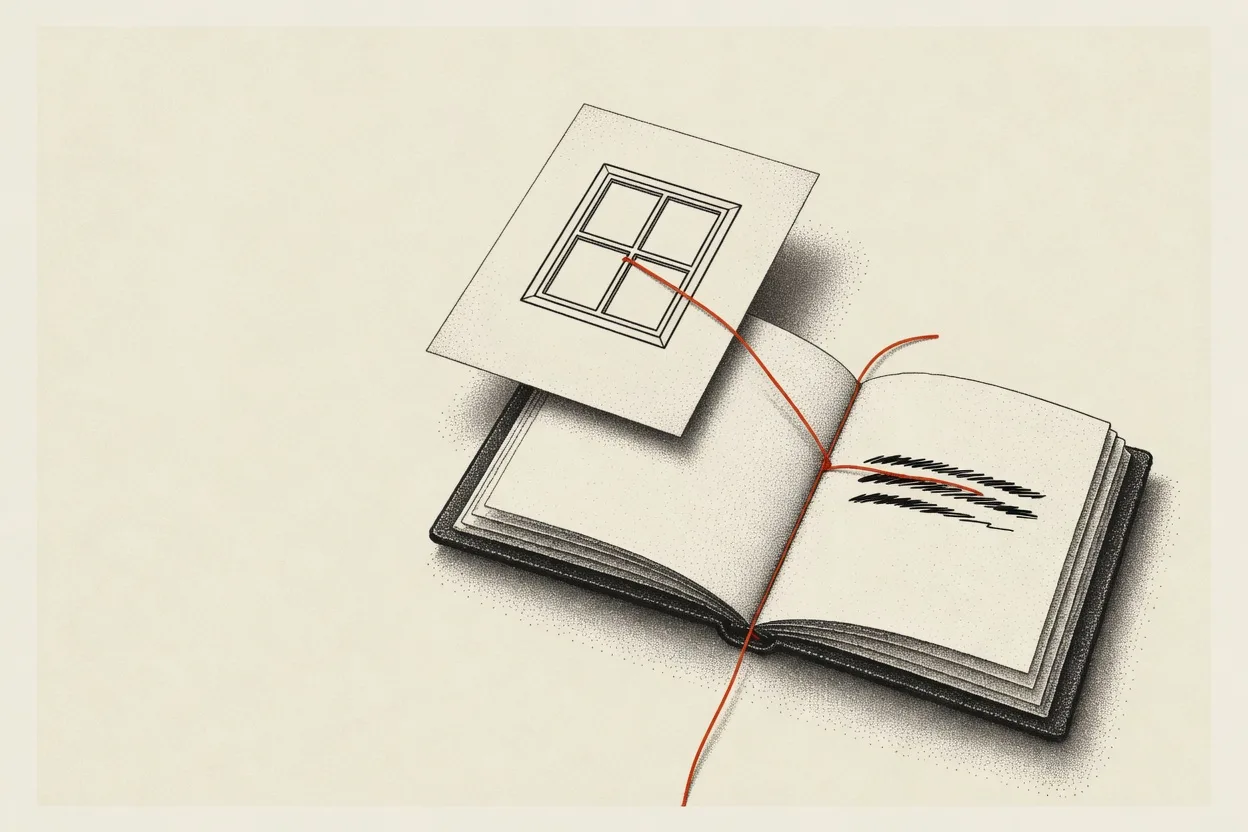
Hold the talk key and the words are written down on your Mac. While you describe the sign-in problem, press ⌃⌥S. Pick the window, draw a box around the button, or take a short video of what happens when you press it. You decide what belongs in the explanation.
The grab lands in the words where you took it, as [1]. Take another and it lands as [2]. You can say what the first picture shows, move to the next state and grab that too. The numbers keep each piece beside the words about it. You do not have to reconstruct the order from a folder of screenshots afterwards.
That is the difference fab is built around. The dictation tools perfected the sentence. fab keeps the thing the sentence is about attached to it, on purpose.
Mark the part you mean and let go
Click a grab to mark it. A box around the sign-in button tells the reader where to look. A mark on the error message can show that the error appeared in the wrong place. You can leave the words to explain what happened rather than make them describe every coordinate on the picture.
Let go of the talk key and the words paste where you were, with the grabs. The explanation now has both parts: what you said and what you chose to show. You still decide who gets it and what you want them to do with it.
fab does not watch the screen. Each grab is one you take. If you want the next state in the explanation, take another grab. If a window has nothing to do with the point, leave it out.
History keeps the take, with a demo video
History keeps the take: the words and the grabs from that stretch of talking. When you come back to the report, the pictures still belong to the explanation. You do not need to remember which screenshot went with which sentence.
A take with grabs becomes a demo video on your Mac, with captions from your words. The stills and short videos you chose give someone a way to follow what happened. You can hand over the demo when that is easier to follow than a written report with pictures.
Your voice and your grabs stay on your Mac. The recording is not uploaded. fab writes the speech down and makes the demo on your Mac. If you share the result through another app, check how that app handles the files you give it.
Use dictation when the words are the whole job
An email, a message or a paragraph may need no picture at all. Dictation is the right tool for that. fab does it too if you never press the grab key: hold, speak, let go, and the words paste where you were.
If Dragon already supports a day spent dictating into documents, a grab attached to a sentence may not be what you need. If you want rough speech cleaned into a message, Wispr Flow and Superwhisper address that directly. There is no need to turn those uses into failures to explain fab.
Use the grab when your sentence refers to something the reader cannot see. “This button” can arrive with the button. “Then it does this” can arrive with a short video. You choose the evidence at the moment you know why it matters, and it stays with the words.
What to look for
- Judge the result you need: a sentence, a cleaned message, or an explanation with something to show.
- Take each grab while you say what it shows. The number belongs beside those words.
- Use a still for a visible state and a short video for something that changes when you click.
- Mark the part the reader should look at before handing over the explanation.
Questions
- Is fab a replacement for Dragon?
- It can take dictation, but this comparison is about keeping grabs with your words. If you depend on Dragon for long documents and voice commands, those remain good reasons to use it.
- Is context awareness the same as taking a grab?
- No. Context awareness can help an app write the sentence. A fab grab is something you deliberately capture and keep inside the take, beside the words about it.
- Does fab capture the screen without me taking a grab?
- No. fab does not watch the screen. You choose each window, area, screen or short video you want to include.
- Does the recording leave my Mac?
- No. Your voice and your grabs stay on your Mac. The recording is not uploaded, and the demo video is made on the Mac.
- Can I just dictate?
- Yes. Never press the grab key and the take is dictation. Your words paste where you were, and History keeps the take.